 Mini PC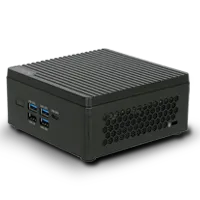
%20--%3e%3csvg%20version='1.1'%20xmlns='http://www.w3.org/2000/svg'%20xmlns:xlink='http://www.w3.org/1999/xlink'%20x='0px'%20y='0px'%20viewBox='0%200%2044%2044'%20style='enable-background:new%200%200%2044%2044;'%20xml:space='preserve'%3e%3cstyle%20type='text/css'%3e%20.st0{fill:%23FFFFFF;}%20.st1{display:none;}%20.st2{display:inline;}%20%3c/style%3e%3cg%20id='Motherboard'%3e%3cg%3e%3cg%3e%3cpath%20class='st0'%20d='M41.2,42.2H3.7c-0.5,0-1-0.4-1-1V21c-0.5,0-1-0.4-1-1v-3.8c0-0.5,0.4-1,1-1v-1.9c-0.5,0-1-0.4-1-1V7.6%20c0-0.5,0.4-1,1-1V2.8c0-0.5,0.4-1,1-1h37.5c0.5,0,1,0.4,1,1v38.4C42.2,41.7,41.7,42.2,41.2,42.2z%20M4.7,40.3h35.5V3.7H4.7v3.8%20c0,0.5-0.4,1-1,1v2.9c0.5,0,1,0.4,1,1v3.8c0,0.5-0.4,1-1,1v1.9c0.5,0,1,0.4,1,1V40.3z'/%3e%3c/g%3e%3cpath%20class='st0'%20d='M23,14.3v-1.9H21v-1.9c0-0.5-0.4-1-1-1h-1.9V7.6h-1.9v1.9h-1.9V7.6h-1.9v1.9h-1.9c-0.5,0-1,0.4-1,1v1.9H7.6%20v1.9h1.9v1.9H7.6v1.9h1.9v1.9c0,0.5,0.4,1,1,1h1.9V23h1.9V21h1.9V23h1.9V21h1.9c0.5,0,1-0.4,1-1v-1.9H23v-1.9H21v-1.9H23z%20M19.1,19.1h-7.7v-7.7h7.7V19.1z'/%3e%3cg%3e%3crect%20x='34.5'%20y='19.1'%20class='st0'%20width='1.9'%20height='1.9'/%3e%3c/g%3e%3cg%3e%3crect%20x='34.5'%20y='34.5'%20class='st0'%20width='1.9'%20height='1.9'/%3e%3c/g%3e%3cg%3e%3crect%20x='34.5'%20y='23'%20class='st0'%20width='1.9'%20height='9.6'/%3e%3c/g%3e%3cg%3e%3crect%20x='30.6'%20y='19.1'%20class='st0'%20width='1.9'%20height='1.9'/%3e%3c/g%3e%3cg%3e%3crect%20x='30.6'%20y='34.5'%20class='st0'%20width='1.9'%20height='1.9'/%3e%3c/g%3e%3cg%3e%3crect%20x='30.6'%20y='23'%20class='st0'%20width='1.9'%20height='9.6'/%3e%3c/g%3e%3cg%3e%3cpath%20class='st0'%20d='M35.4,17.2h-8.6c-0.5,0-1-0.4-1-1v-5.8c0-0.5,0.4-1,1-1h8.6c0.5,0,1,0.4,1,1v5.8%20C36.4,16.8,36,17.2,35.4,17.2z%20M27.8,15.3h6.7v-3.8h-6.7V15.3z'/%3e%3c/g%3e%3cg%3e%3crect%20x='7.6'%20y='26.8'%20class='st0'%20width='20.2'%20height='1.9'/%3e%3c/g%3e%3cg%3e%3crect%20x='7.6'%20y='30.6'%20class='st0'%20width='20.2'%20height='1.9'/%3e%3c/g%3e%3cg%3e%3crect%20x='7.6'%20y='34.5'%20class='st0'%20width='20.2'%20height='1.9'/%3e%3c/g%3e%3c/g%3e%3c/g%3e%3cg%20id='laptop'%20class='st1'%3e%3cg%20class='st2'%3e%3cg%3e%3cpath%20class='st0'%20d='M40.9,32.3h-1.5V10.6c0-0.6-0.5-1-1-1H5.7c-0.6,0-1,0.5-1,1v21.7H3.1V10.6C3.1,9.2,4.3,8,5.7,8h32.6%20c1.4,0,2.6,1.2,2.6,2.6V32.3z'/%3e%3c/g%3e%3cg%3e%3cpath%20class='st0'%20d='M39.2,36.7H4.8c-2.4,0-4.4-2-4.4-4.4v-0.8h17.4l0.9,0.9h6.6l0.9-0.9h17.4v0.8C43.6,34.7,41.6,36.7,39.2,36.7%20z%20M2.1,33.1c0.3,1.2,1.4,2.1,2.7,2.1h34.4c1.3,0,2.4-0.9,2.7-2.1H26.8L25.9,34h-7.9l-0.9-0.9H2.1z'/%3e%3c/g%3e%3c/g%3e%3c/g%3e%3cg%20id='system'%20class='st1'%3e%3cg%20class='st2'%3e%3cg%3e%3crect%20x='3.6'%20y='11'%20class='st0'%20width='5'%20height='1.7'/%3e%3c/g%3e%3cg%3e%3crect%20x='3.6'%20y='14.9'%20class='st0'%20width='5'%20height='1.7'/%3e%3c/g%3e%3cg%3e%3crect%20x='3.6'%20y='18.8'%20class='st0'%20width='5'%20height='1.7'/%3e%3c/g%3e%3cg%3e%3crect%20x='19.3'%20y='36.1'%20class='st0'%20width='14.9'%20height='1.7'/%3e%3c/g%3e%3cg%3e%3cpath%20class='st0'%20d='M41.6,33.3H11.8c-1,0-1.8-0.8-1.8-1.8V12.3c0-1,0.8-1.8,1.8-1.8h29.8c1,0,1.8,0.8,1.8,1.8v19.3%20C43.4,32.5,42.6,33.3,41.6,33.3z%20M11.8,12.3v19.3h29.8l0-19.3H11.8z'/%3e%3c/g%3e%3cg%3e%3cpath%20class='st0'%20d='M26.7,37.7c-0.5,0-0.9-0.4-0.9-0.9v-4.4c0-0.5,0.4-0.9,0.9-0.9c0.5,0,0.9,0.4,0.9,0.9v4.4%20C27.6,37.3,27.2,37.7,26.7,37.7z'/%3e%3c/g%3e%3cg%3e%3cpath%20class='st0'%20d='M42.5,28.9H11c-0.5,0-0.9-0.4-0.9-0.9c0-0.5,0.4-0.9,0.9-0.9h31.5c0.5,0,0.9,0.4,0.9,0.9%20C43.4,28.5,43,28.9,42.5,28.9z'/%3e%3c/g%3e%3cg%3e%3cg%3e%3cg%3e%3cg%3e%3cpath%20class='st0'%20d='M7.6,31.3c-0.6,0-1.1,0.5-1.1,1.1c0,0.6,0.5,1.1,1.1,1.1s1.1-0.5,1.1-1.1C8.8,31.8,8.3,31.3,7.6,31.3%20L7.6,31.3z'/%3e%3c/g%3e%3c/g%3e%3c/g%3e%3c/g%3e%3cpath%20class='st0'%20d='M12.9,34.3C12.9,34.3,12.9,34.3,12.9,34.3l0,1.6H2.4v-28h10.5v1.6c0,0,0,0,0,0h1.7c0,0,0,0,0,0V7.9%20c0-1-0.8-1.8-1.8-1.8H2.4c-1,0-1.8,0.8-1.8,1.8v28c0,1,0.8,1.8,1.8,1.8h10.5c1,0,1.8-0.8,1.8-1.8v-1.6c0,0,0,0,0,0H12.9z'/%3e%3c/g%3e%3c/g%3e%3c/svg%3e) Motherboard
Motherboard%20--%3e%3csvg%20version='1.1'%20xmlns='http://www.w3.org/2000/svg'%20xmlns:xlink='http://www.w3.org/1999/xlink'%20x='0px'%20y='0px'%20viewBox='0%200%2044%2044'%20style='enable-background:new%200%200%2044%2044;'%20xml:space='preserve'%3e%3cstyle%20type='text/css'%3e%20.st0{display:none;}%20.st1{display:inline;}%20.st2{fill:%23FFFFFF;}%20%3c/style%3e%3cg%20id='Motherboard'%20class='st0'%3e%3cg%20class='st1'%3e%3cg%3e%3cpath%20class='st2'%20d='M42.2,43.2H2.8c-0.6,0-1-0.5-1-1V21c-0.6,0-1-0.5-1-1v-4c0-0.6,0.5-1,1-1v-2c-0.6,0-1-0.5-1-1v-5%20c0-0.6,0.5-1,1-1v-4c0-0.6,0.5-1,1-1h39.3c0.6,0,1,0.5,1,1v40.3C43.2,42.7,42.7,43.2,42.2,43.2z%20M3.8,41.2h37.3V2.8H3.8v4%20c0,0.6-0.5,1-1,1v3c0.6,0,1,0.5,1,1v4c0,0.6-0.5,1-1,1v2c0.6,0,1,0.5,1,1V41.2z'/%3e%3c/g%3e%3cpath%20class='st2'%20d='M23,13.9v-2h-2v-2c0-0.6-0.5-1-1-1h-2v-2h-2v2h-2v-2h-2v2h-2c-0.6,0-1,0.5-1,1v2h-2v2h2v2h-2v2h2v2%20c0,0.6,0.5,1,1,1h2v2h2v-2h2v2h2v-2h2c0.6,0,1-0.5,1-1v-2h2v-2h-2v-2H23z%20M19,19h-8.1v-8.1H19V19z'/%3e%3cg%3e%3crect%20x='35.1'%20y='19'%20class='st2'%20width='2'%20height='2'/%3e%3c/g%3e%3cg%3e%3crect%20x='35.1'%20y='35.1'%20class='st2'%20width='2'%20height='2'/%3e%3c/g%3e%3cg%3e%3crect%20x='35.1'%20y='23'%20class='st2'%20width='2'%20height='10.1'/%3e%3c/g%3e%3cg%3e%3crect%20x='31.1'%20y='19'%20class='st2'%20width='2'%20height='2'/%3e%3c/g%3e%3cg%3e%3crect%20x='31.1'%20y='35.1'%20class='st2'%20width='2'%20height='2'/%3e%3c/g%3e%3cg%3e%3crect%20x='31.1'%20y='23'%20class='st2'%20width='2'%20height='10.1'/%3e%3c/g%3e%3cg%3e%3cpath%20class='st2'%20d='M36.1,17H27c-0.6,0-1-0.5-1-1V9.9c0-0.6,0.5-1,1-1h9.1c0.6,0,1,0.5,1,1v6.1C37.1,16.5,36.7,17,36.1,17z%20M28.1,14.9h7.1v-4h-7.1V14.9z'/%3e%3c/g%3e%3cg%3e%3crect%20x='6.9'%20y='27'%20class='st2'%20width='21.2'%20height='2'/%3e%3c/g%3e%3cg%3e%3crect%20x='6.9'%20y='31.1'%20class='st2'%20width='21.2'%20height='2'/%3e%3c/g%3e%3cg%3e%3crect%20x='6.9'%20y='35.1'%20class='st2'%20width='21.2'%20height='2'/%3e%3c/g%3e%3c/g%3e%3c/g%3e%3cg%20id='laptop'%3e%3cg%3e%3cg%3e%3cpath%20class='st2'%20d='M40.9,32.3h-1.5V10.6c0-0.6-0.5-1-1-1H5.7c-0.6,0-1,0.5-1,1v21.7H3.1V10.6C3.1,9.2,4.3,8,5.7,8h32.6%20c1.4,0,2.6,1.2,2.6,2.6V32.3z'/%3e%3c/g%3e%3cg%3e%3cpath%20class='st2'%20d='M39.2,36.7H4.8c-2.4,0-4.4-2-4.4-4.4v-0.8h17.4l0.9,0.9h6.6l0.9-0.9h17.4v0.8C43.6,34.7,41.6,36.7,39.2,36.7%20z%20M2.1,33.1c0.3,1.2,1.4,2.1,2.7,2.1h34.4c1.3,0,2.4-0.9,2.7-2.1H26.8L25.9,34h-7.9l-0.9-0.9H2.1z'/%3e%3c/g%3e%3c/g%3e%3c/g%3e%3cg%20id='system'%20class='st0'%3e%3cg%20class='st1'%3e%3cg%3e%3crect%20x='3.6'%20y='11'%20class='st2'%20width='5'%20height='1.7'/%3e%3c/g%3e%3cg%3e%3crect%20x='3.6'%20y='14.9'%20class='st2'%20width='5'%20height='1.7'/%3e%3c/g%3e%3cg%3e%3crect%20x='3.6'%20y='18.8'%20class='st2'%20width='5'%20height='1.7'/%3e%3c/g%3e%3cg%3e%3crect%20x='19.3'%20y='36.1'%20class='st2'%20width='14.9'%20height='1.7'/%3e%3c/g%3e%3cg%3e%3cpath%20class='st2'%20d='M41.6,33.3H11.8c-1,0-1.8-0.8-1.8-1.8V12.3c0-1,0.8-1.8,1.8-1.8h29.8c1,0,1.8,0.8,1.8,1.8v19.3%20C43.4,32.5,42.6,33.3,41.6,33.3z%20M11.8,12.3v19.3h29.8l0-19.3H11.8z'/%3e%3c/g%3e%3cg%3e%3cpath%20class='st2'%20d='M26.7,37.7c-0.5,0-0.9-0.4-0.9-0.9v-4.4c0-0.5,0.4-0.9,0.9-0.9c0.5,0,0.9,0.4,0.9,0.9v4.4%20C27.6,37.3,27.2,37.7,26.7,37.7z'/%3e%3c/g%3e%3cg%3e%3cpath%20class='st2'%20d='M42.5,28.9H11c-0.5,0-0.9-0.4-0.9-0.9c0-0.5,0.4-0.9,0.9-0.9h31.5c0.5,0,0.9,0.4,0.9,0.9%20C43.4,28.5,43,28.9,42.5,28.9z'/%3e%3c/g%3e%3cg%3e%3cg%3e%3cg%3e%3cg%3e%3cpath%20class='st2'%20d='M7.6,31.3c-0.6,0-1.1,0.5-1.1,1.1c0,0.6,0.5,1.1,1.1,1.1s1.1-0.5,1.1-1.1C8.8,31.8,8.3,31.3,7.6,31.3%20L7.6,31.3z'/%3e%3c/g%3e%3c/g%3e%3c/g%3e%3c/g%3e%3cpath%20class='st2'%20d='M12.9,34.3C12.9,34.3,12.9,34.3,12.9,34.3l0,1.6H2.4v-28h10.5v1.6c0,0,0,0,0,0h1.7c0,0,0,0,0,0V7.9%20c0-1-0.8-1.8-1.8-1.8H2.4c-1,0-1.8,0.8-1.8,1.8v28c0,1,0.8,1.8,1.8,1.8h10.5c1,0,1.8-0.8,1.8-1.8v-1.6c0,0,0,0,0,0H12.9z'/%3e%3c/g%3e%3c/g%3e%3c/svg%3e) Laptop
Laptop%20--%3e%3csvg%20version='1.1'%20id='圖層_2'%20xmlns='http://www.w3.org/2000/svg'%20xmlns:xlink='http://www.w3.org/1999/xlink'%20x='0px'%20y='0px'%20viewBox='0%200%2044%2044'%20style='enable-background:new%200%200%2044%2044;'%20xml:space='preserve'%3e%3cstyle%20type='text/css'%3e%20.st0{fill:%23FFFFFF;}%20%3c/style%3e%3cg%3e%3cg%3e%3crect%20x='10.6'%20y='37.3'%20class='st0'%20width='22.1'%20height='1.9'/%3e%3c/g%3e%3cg%3e%3cpath%20class='st0'%20d='M41.1,33H2.6c-1.1,0-1.9-0.9-1.9-1.9V6.5c0-1.1,0.9-1.9,1.9-1.9h38.5c1.1,0,1.9,0.9,1.9,1.9v24.6%20C43,32.2,42.2,33,41.1,33z%20M2.6,6.5v24.6h38.5l0-24.6H2.6z'/%3e%3c/g%3e%3cg%3e%3cpath%20class='st0'%20d='M24.7,39c-0.5,0-1-0.4-1-1v-4.8c0-0.5,0.4-1,1-1s1,0.4,1,1V38C25.7,38.6,25.3,39,24.7,39z'/%3e%3c/g%3e%3cg%3e%3cpath%20class='st0'%20d='M18.8,39c-0.5,0-1-0.4-1-1v-4.8c0-0.5,0.4-1,1-1s1,0.4,1,1V38C19.8,38.6,19.3,39,18.8,39z'/%3e%3c/g%3e%3cg%3e%3cpath%20class='st0'%20d='M41.6,28.2H2.1c-0.5,0-0.9-0.4-0.9-1c0-0.5,0.4-1,0.9-1h39.5c0.5,0,0.9,0.4,0.9,1%20C42.6,27.8,42.2,28.2,41.6,28.2z'/%3e%3c/g%3e%3c/g%3e%3c/svg%3e) AIO PC
AIO PC IPC
IPC CubeSat
'%3e%3cpath%20id='map-marker-alt'%20d='M3.819,11.121C.6,6.452,0,5.972,0,4.256a4.256,4.256,0,0,1,8.512,0c0,1.716-.6,2.2-3.819,6.865a.532.532,0,0,1-.875,0ZM4.256,6.03A1.773,1.773,0,1,0,2.483,4.256,1.773,1.773,0,0,0,4.256,6.03Z'%20transform='translate(-963.636%20287.322)'%20fill='%23fff'/%3e%3cpath%20id='Subtraction_8'%20data-name='Subtraction%208'%20d='M14.826,15.814a1.729,1.729,0,0,1-1.21-2.965H7.14a1.729,1.729,0,1,1-2.7.357,1.741,1.741,0,0,1,.629-.621L2.9,1.977H.741A.742.742,0,0,1,0,1.235V.741A.742.742,0,0,1,.741,0H3.908a.744.744,0,0,1,.726.593l.073.356,1.5,7.614,8.718-.032L16.3,1.977h.753a.741.741,0,0,1,.723.906l-1.46,6.424a.737.737,0,0,1-.723.577H6.535l.2.988h8.291a.741.741,0,0,1,.723.906l-.17.75a1.73,1.73,0,0,1-.754,3.287Z'%20transform='translate(-970%20292.701)'%20fill='%23fff'/%3e%3c/g%3e%3c/svg%3e)



Latest News

ECS to Showcase AI-ready Computing Platforms at COMPUTEX 2026
2026/05/26 Event News

ECS Highlights Fanless and Edge Computing Platforms at Embedded World 2026
2026/02/26 Event News

ECS Showcases the Full LIVA Mini PC Portfolio at ISE 2026
2026/02/02 Event News